
To refill a Stratasys cartridge, you reset the material counter on its EEPROM chip. With re:Filament and the OpenFilament Dimension/Fortus Filament Refiller you read the chip, set the remaining filament back to full, and write it back, in about two minutes. This guide covers Fortus 360mc, 400mc and 900mc and Dimension model and support cartridges, with a screenshot for every step.
Note: Using a uPrint? Follow the uPrint cartridge refill guide instead.
Quick answer: refill a Stratasys cartridge in 6 steps
- Seat the cartridge’s EEPROM chip in the Dimension/Fortus Filament Refiller and select it in re:Filament.
- Choose your printer type: 360/400/900mc or 250mc/Dimension.
- Click Read cartridge.
- Click Refill remaining material to reset the counter to full.
- Click Write to cartridge and wait for the green confirmation.
- Put the chip back in the refilled cartridge.
Why refill your Stratasys cartridges?
New OEM cartridges are expensive, and the printer won’t use a cartridge whose chip says it’s empty. Resetting the chip lets you refill and reuse the cartridges you already have, with the filament you choose, including third-party and engineering materials. Your printer, your materials.
What you need to refill a Stratasys cartridge
- The OpenFilament Dimension/Fortus Filament Refiller (USB EEPROM reader/writer)
- The EEPROM chip from the Stratasys cartridge you’re refilling
- A Windows 10 or 11 PC with the CH340 USB driver installed
- re:Filament (reFilament.exe): a single file, no installer or .NET download needed
Shop the Dimension/Fortus Filament Refiller
Tip: The first time you open reFilament.exe, Windows may show “Windows protected your PC”. Click More info, then Run anyway.
Supported Stratasys printers and cartridges
re:Filament resets the EEPROM chip on model and support cartridges for:
- Fortus 360mc, 400mc and 900mc (printer type 360/400/900mc)
- Dimension printers and others using the 250mc/Dimension cartridge format
It recognises more than 130 Stratasys materials, including ABS-M30, ABSplus P430, ABSi, PC, PC-ABS, ULTEM 9085, ULTEM 1010, Nylon 12, PPSF and ASA, and support materials such as SR-30 and SR-100.
The re:Filament window
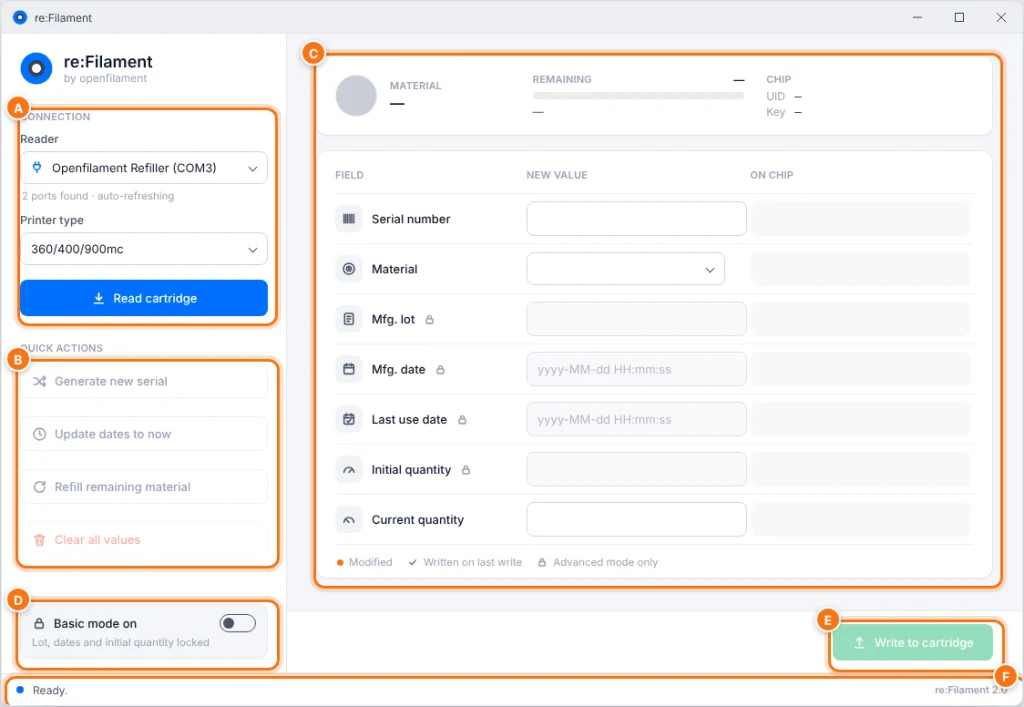
- A. Connection: choose the Refiller and printer type, then read the chip.
- B. Quick actions: reset the material counter, new serial number, update dates, clear.
- C. Cartridge data: material, remaining filament, and every EEPROM field: the value to write next to the value on the chip.
- D. Mode switch: Basic mode (default) or Advanced mode.
- E. Write to cartridge: saves your changes to the EEPROM chip.
- F. Status bar: what just happened, or what went wrong and how to fix it.
Step 1: Connect the Refiller and select it
Plug the Dimension/Fortus Filament Refiller into a USB port and seat the Stratasys cartridge’s EEPROM chip in it. In Reader, choose Openfilament Refiller (COM…).
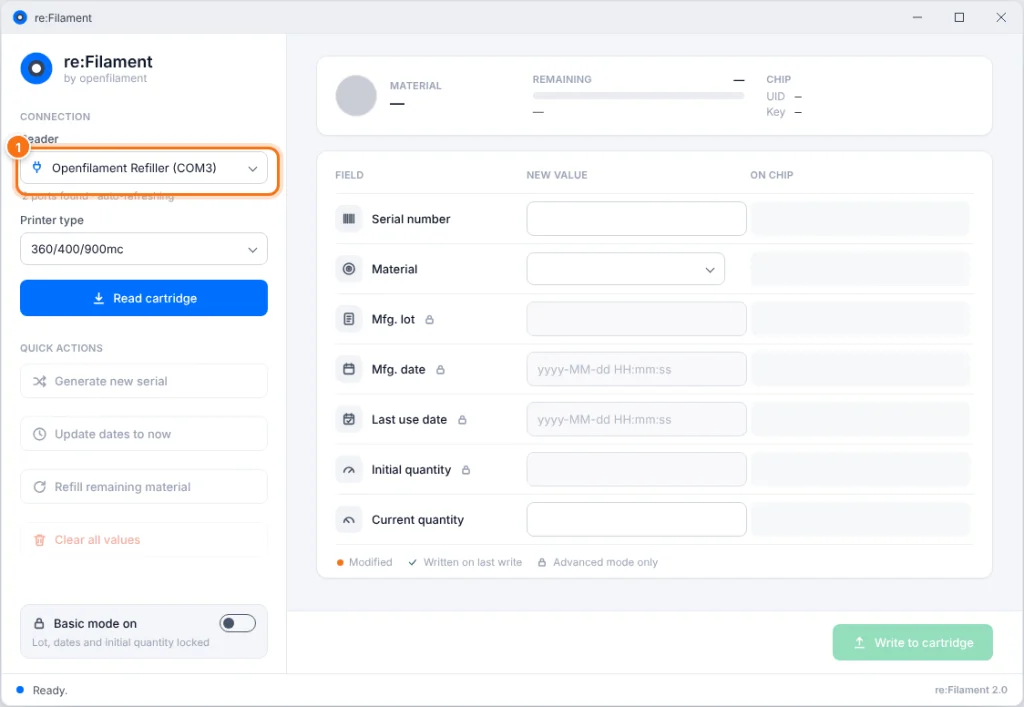
Tip: The list refreshes every few seconds. If the Refiller doesn’t appear, unplug it and plug it back in. If it still doesn’t appear, reinstall the CH340 driver.
Step 2: Choose your Stratasys printer type
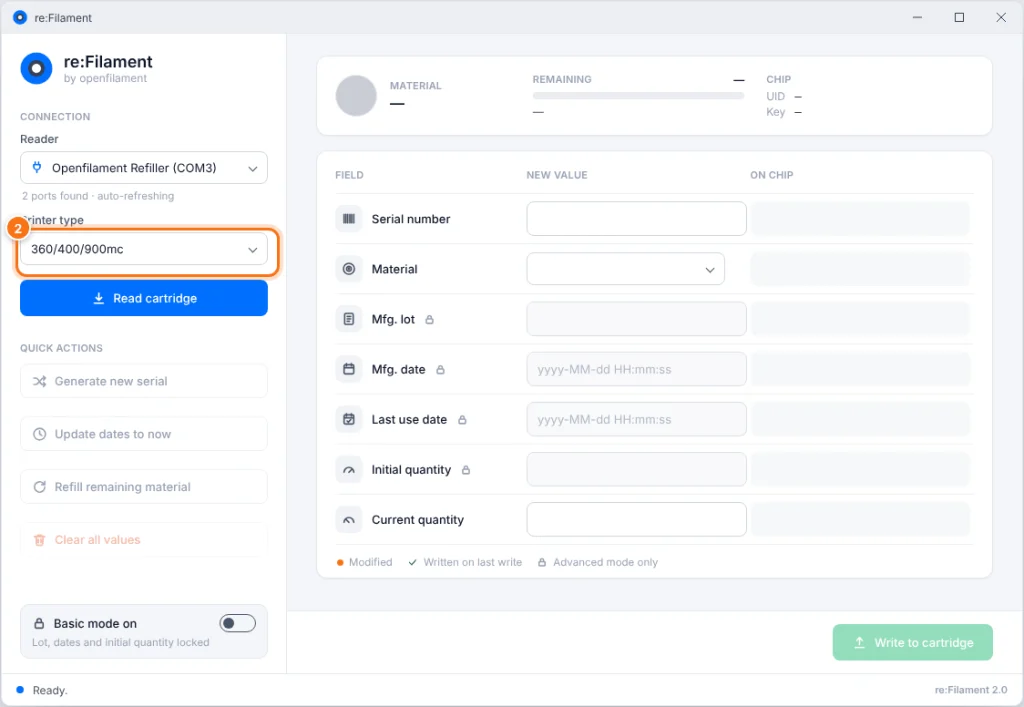
In Printer type, choose 360/400/900mc for Fortus cartridges or 250mc/Dimension. The EEPROM data is encrypted with a key that depends on the printer type, so this choice must match the cartridge.
Step 3: Read the cartridge EEPROM chip
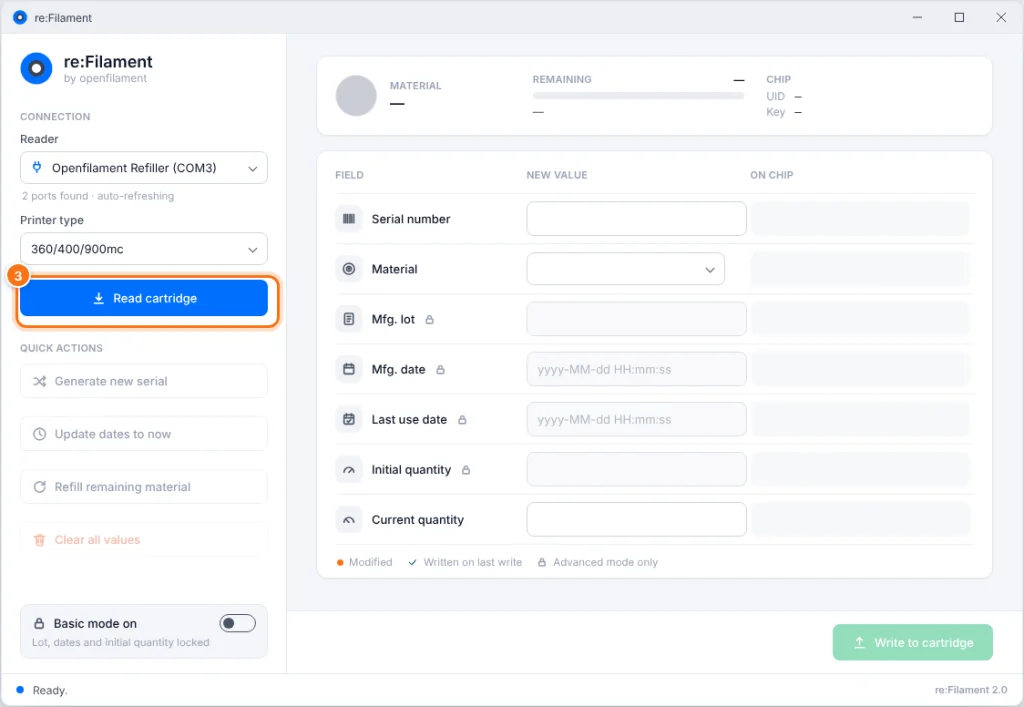
Click Read cartridge. Reading takes a few seconds. When it’s done, the status bar shows EEPROM read OK and the cartridge data fills in.
Step 4: Check the cartridge data
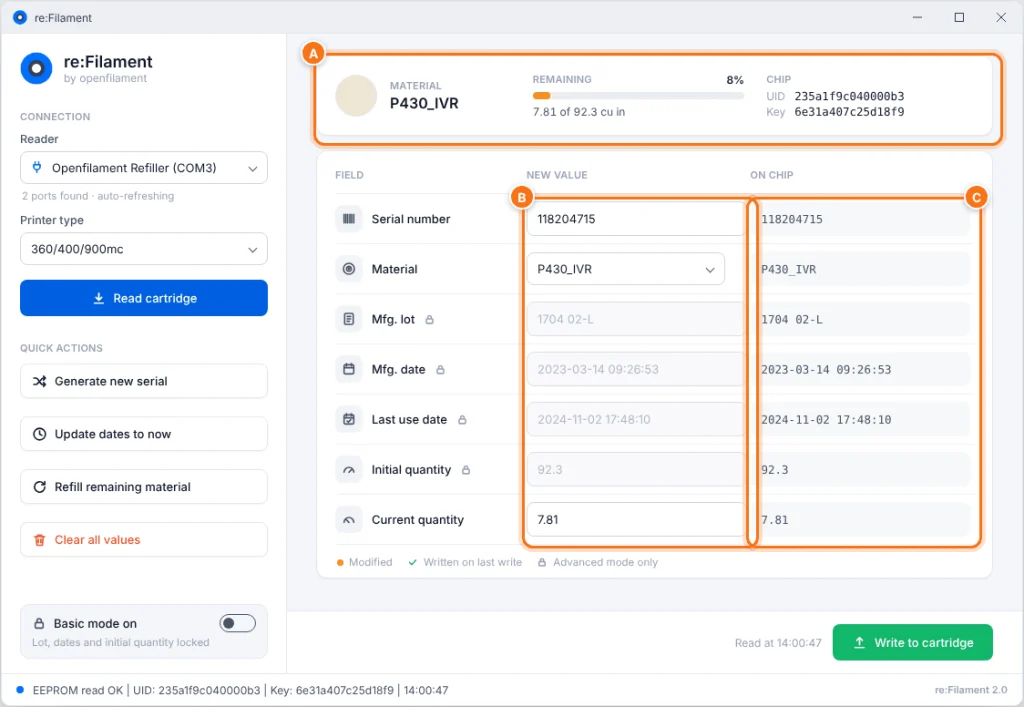
- A. Summary: the material, the remaining filament (bar and cubic inches), and the chip ID.
- B. New value: what will be written to the chip. Edit these.
- C. On chip: what’s on the EEPROM right now. This column is read-only.
Fields with a padlock can only be changed in Advanced mode (Step 8).
Step 5: Reset the material counter to full
Click Refill remaining material. The current filament quantity is set back to the cartridge’s initial (full) quantity. An orange dot marks each changed field, and the bottom bar shows Unsaved changes.
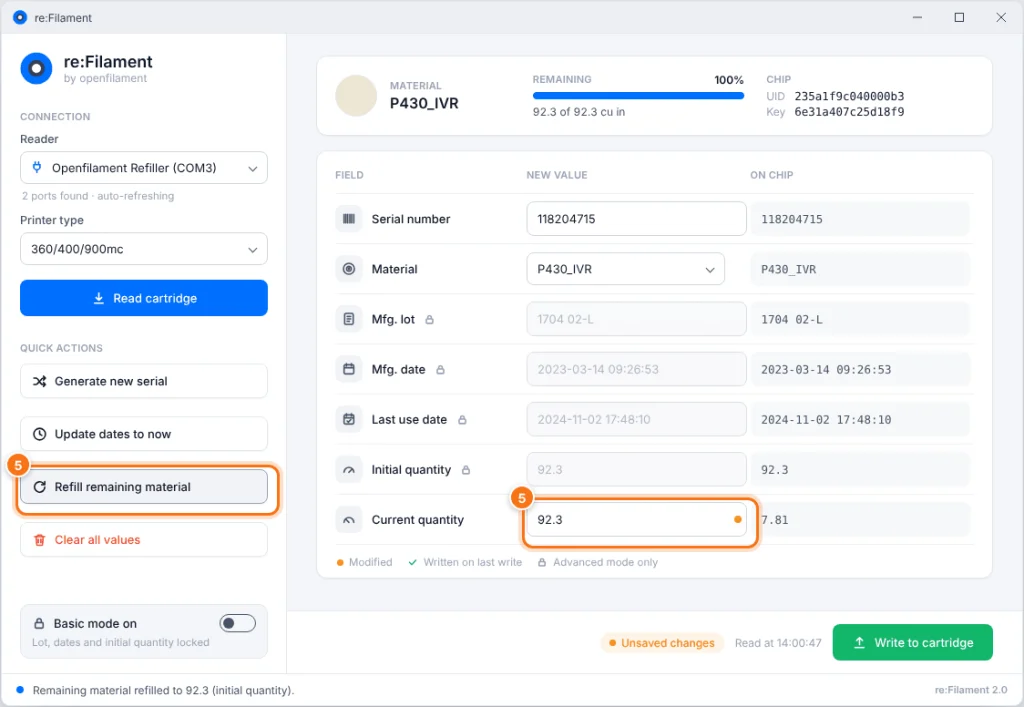
Note: Nothing changes on the chip until you click Write to cartridge in Step 7.
Step 6: New serial number and dates
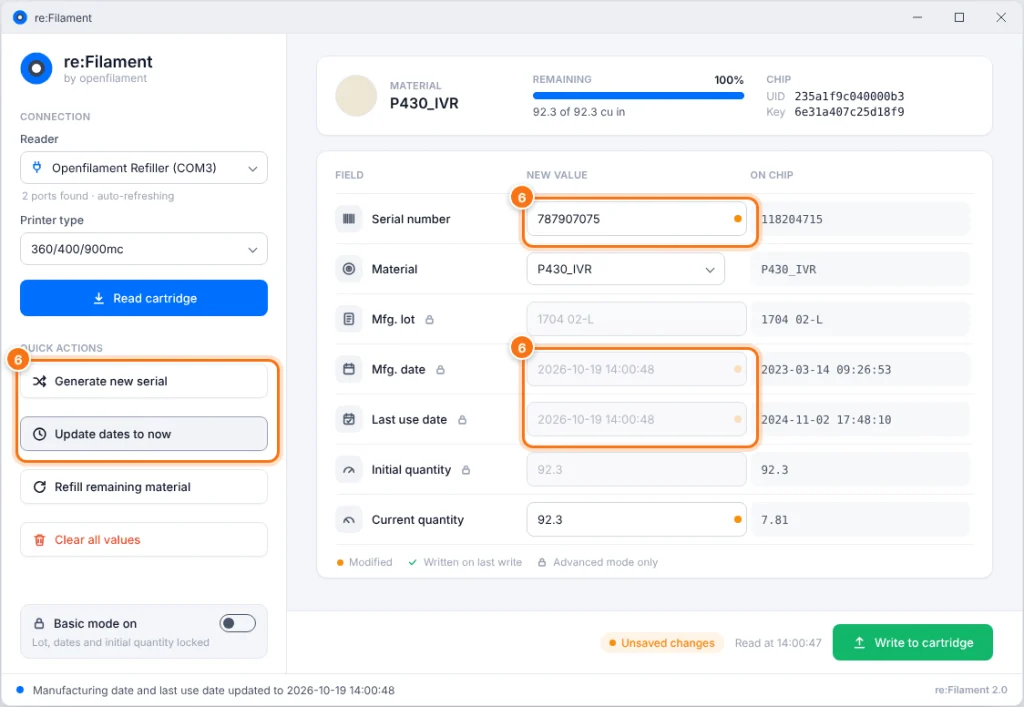
- Generate new serial: creates a random 9-digit cartridge serial number.
- Update dates to now (optional): sets the manufacturing and last-use dates to the current date and time.
Step 7: Write the data back to the EEPROM chip
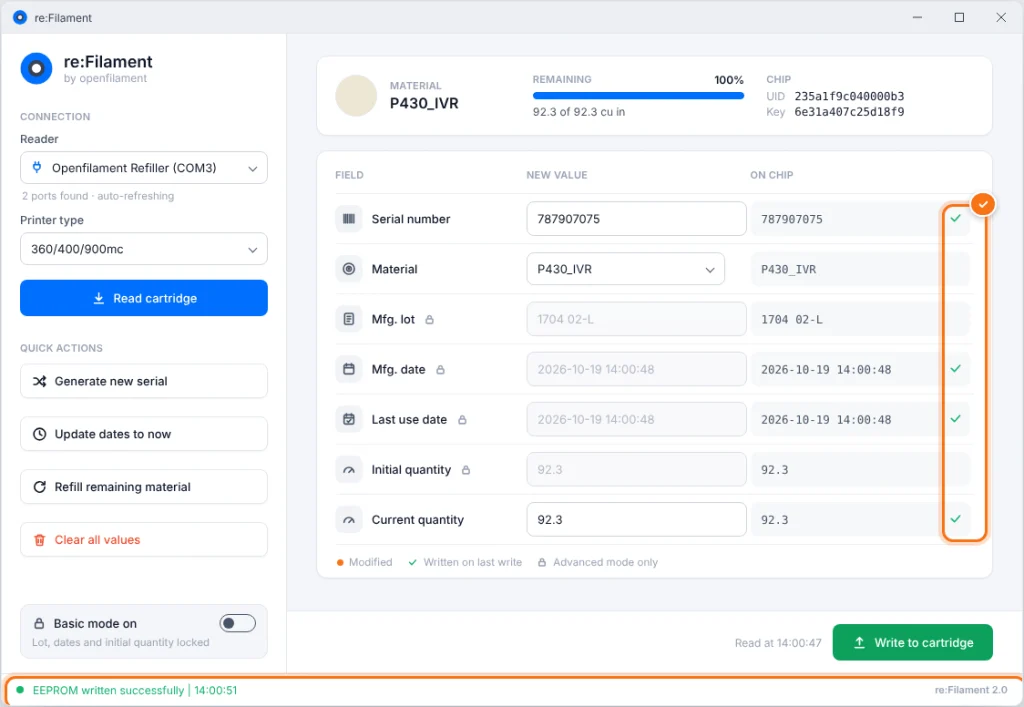
Click Write to cartridge. Keep the chip in the Refiller until the status bar turns green.
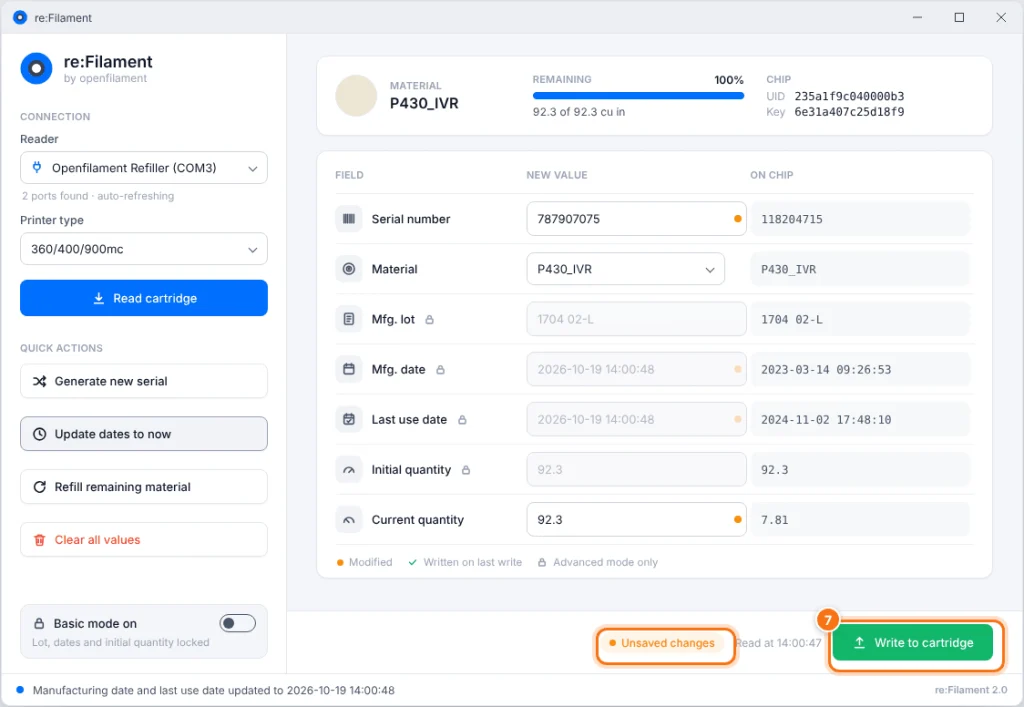
When the write succeeds, the status bar says EEPROM written successfully, the On chip column updates, and each written field gets a green check. Put the chip back in the refilled cartridge and it’s ready to print.
Step 8 (optional): Advanced mode
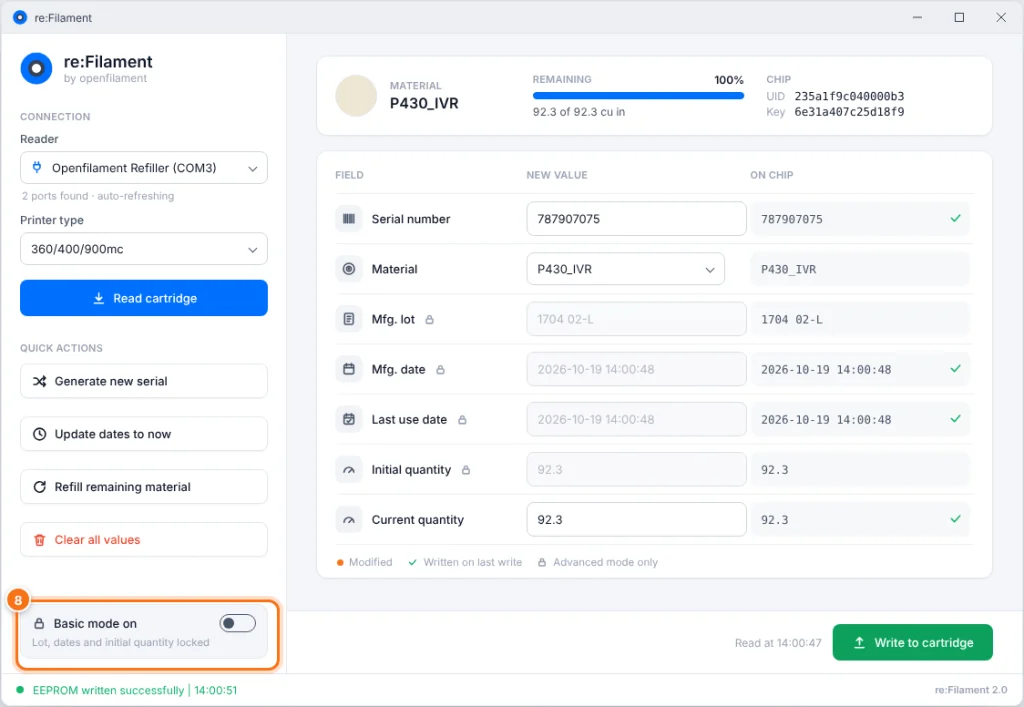
Basic mode lets you change the serial number, material and current quantity. Advanced mode also unlocks the lot number, manufacturing and last-use dates, and initial quantity.
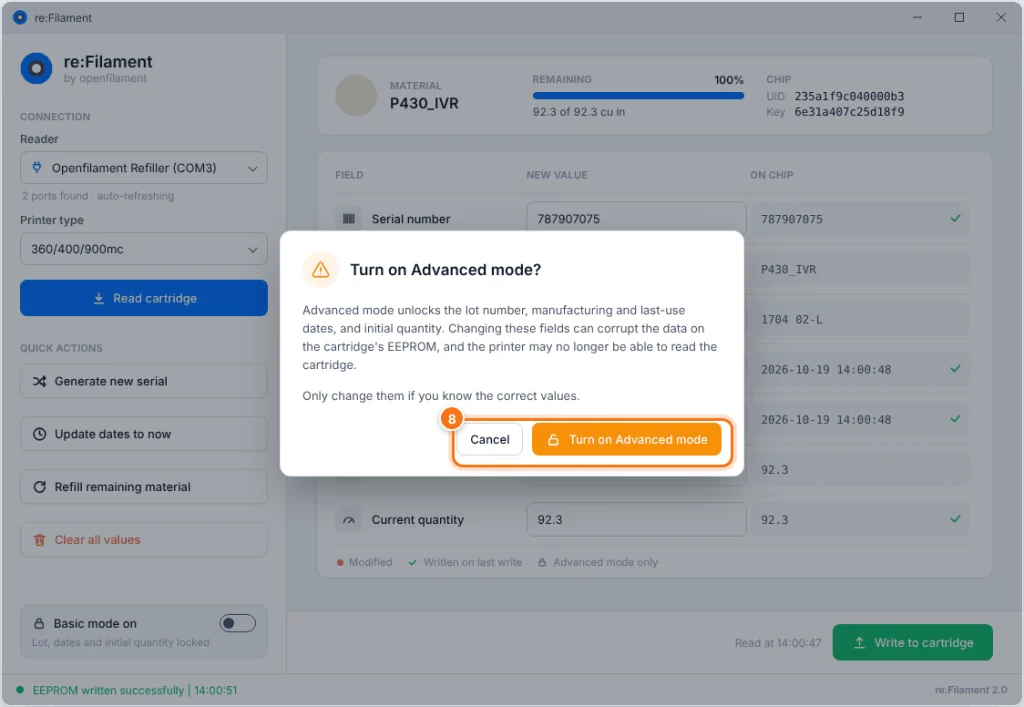
Turning it on shows a warning first. Wrong values in these fields can corrupt the cartridge’s EEPROM data so the printer can’t read it. Click Cancel unless you know the correct values.
Step 9: Clear the form for the next cartridge
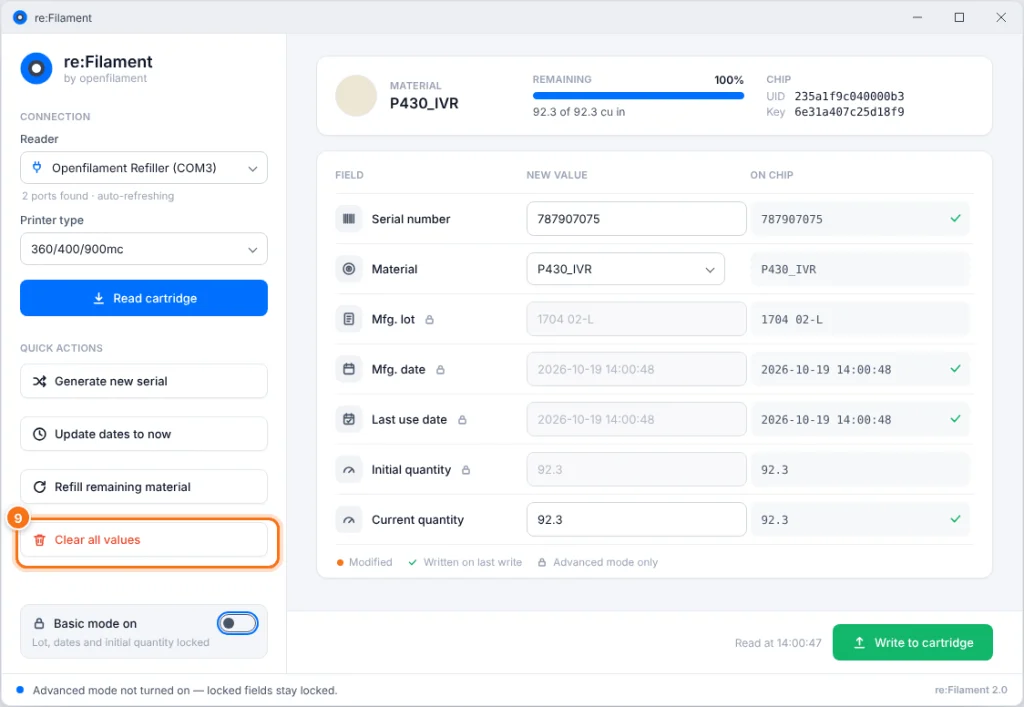
Click Clear all values, remove the chip, insert the next one and go back to Step 3.
Troubleshooting Stratasys cartridge refills
The status bar always explains what went wrong. The most common messages:
| Message in the status bar | What to do |
|---|---|
| No device selected | Plug in the Refiller and choose it in Reader (Step 1). |
| EEPROM not detected | Re-seat the chip in the Refiller and check that its light is on, then read again. |
| Could not read EEPROM | Check the USB cable and the CH340 driver. If it keeps happening, try another chip. |
| Incompatible printer selected | The printer type doesn’t match this chip. Choose the other type and read again. |
| Unknown material ID | The chip uses a material re:Filament doesn’t recognise, so it can’t be refilled with this version. |
| Write timed out | The chip moved during the write. Re-seat it, read it again, then write again. |
| … must be in format yyyy-MM-dd HH:mm:ss | Type the date like 2026-10-19 14:30:00, or use Update dates to now. |
Get the Dimension/Fortus Filament Refiller
Together with re:Filament, the Dimension/Fortus Filament Refiller lets you refill Fortus and Dimension cartridges with the filament you choose.
Shop the Dimension/Fortus Filament Refiller
Stratasys, Fortus, Dimension and uPrint are trademarks of Stratasys Ltd. re:Filament is made by openfilament LLC and is not affiliated with or endorsed by Stratasys.