
How to Change Temperatures on a Stratasys Fortus 250mc, Dimension or uPrint with MaracaEX
To change the temperatures on a Stratasys Fortus 250mc, Dimension or uPrint, you edit the set points in MaracaEX’s Temperatures window and restart the printer. MaracaEX 4.4 is Stratasys’s own service utility. It talks to the printer over your network and lets you set the model head, support head and chamber temperatures for building and for standby. Insight and Catalyst don’t let you touch any of these. This guide covers the whole process, with a screenshot for each step.
⚠️ Read this first. Stratasys’s help file says MaracaEX is meant only for trained service personnel. It also warns that using it can damage the controller software and leave the printer non-functional. Changing set points can affect a service contract, and a bad value can cook a liquefier. Back up first (Step 4) and change one value at a time.
Why change the temperature on a Stratasys printer?
The stock set points are tuned for Stratasys’s own material. Most owners who open MaracaEX are trying to fix one of these:
- Third-party filament. A different brand of ABS, ASA or PC can melt and bond best at a slightly different temperature from OEM spools. If you run open material through a Dimension/Fortus refiller or a uPrint refiller, a small head temperature change is often the last piece of tuning.
- Warping and curl on large, flat parts, which the chamber temperature controls.
- Weak layer bonding or parts that split along layer lines.
- Stringing, oozing or rough surfaces from a head that runs too hot.
If your printer is throwing errors rather than printing badly, start with the fault first. For example, see our guide to the Fortus liquefier deadlock error.
Quick answer: change Stratasys temperatures in 7 steps
- Install MaracaEX 4.4 on a Windows PC on the same network as the printer.
- Click + and add your printer with its type (e.g. Fortus 250mc) and IP address.
- Select it under Current printer and let MaracaEX connect.
- Click Get Config and save a backup.
- Click Temperatures and enter the new build and standby set points.
- Click the green check mark, then power-cycle the printer.
- Open Status and confirm the actual temperatures reach the new set points.
What you need
- The MaracaEX 4.4 package (
MaracaEX-V440-4274.zip, Build 4274) - A Windows PC. MaracaEX is a 32-bit Windows program. It runs on Windows 7 through 11, including a Windows virtual machine (Parallels, VMware, etc.) on a Mac.
- A network connection to the printer. The PC must be able to reach the printer’s IP address, which is shown in the network settings on the printer’s front panel.
- The printer idle. Never change temperatures during a build.
Supported Stratasys printers
The Printer type list in MaracaEX 4.4 includes:
- Fortus 250mc and Fortus 200mc
- Dimension Elite, Dimension BST/SST 768, Dimension BST/SST 1200 and BST/SST 1200es
- Prodigy and Prodigy Plus
- uPrint, uPrint Plus, uPrint SE and uPrint SE Plus
Step 1: Install MaracaEX
- Unzip
MaracaEX-V440-4274.zip. - Run
setup.exeand accept the defaults. - Open MaracaEX 4.4 from the Start menu (Dimension → MaracaEX 4.4).
The first time you run it, the printer list is empty.
Step 2: Add your printer
Click the + button at the bottom of the main window (D in the Step 3 screenshot). The Add or Modify Printer window opens.
Pick the printer type (A), enter the printer’s IP address (B) and click the check mark (C).
- Printer name: any label, e.g. “Fortus 250mc”
- Printer type (A): open the list and choose your model. Fortus 250mc is near the bottom.
- Printer location: optional
- Printer IP address (B): the address from the printer’s front panel
Fortus 250mc and 200mc are at the bottom of the Printer type list.
Click the green check mark (C) to save the printer definition.
Step 3: Select the printer and connect
Current printer (A), the Temperatures button (B), Connect (C) and Add printer (D).
- Choose your printer from Current printer (A). MaracaEX tries to connect once.
- When the connection works, the State, Internal state and Home state fields fill in. For example, Internal state shows
sttIdlewhen the printer is idle. - If the printer was off or the network wasn’t ready, click the blue Connect arrows (C) to try again.
Step 4: Back up the configuration
Click Get Config and save the file somewhere safe. Put the printer’s serial number and the date in the file name. This file is a snapshot of the printer’s current settings, including the temperature values, so you can see what the printer was set to before you changed anything.
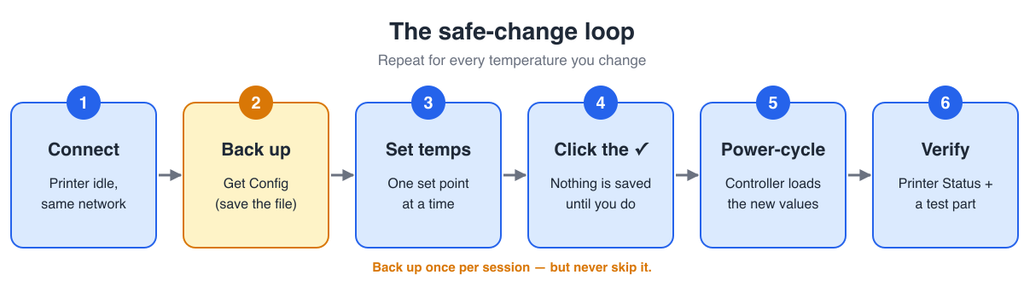
Every temperature change after this follows the same loop:
Step 5: Enter the new temperature set points
Click Temperatures (B) in the main window.
Build set points (A), standby set points (B) and the check mark that sends them to the printer (C). These screenshots were taken with no printer connected, so the fields show placeholder values. A connected printer shows its real set points.
The window has two groups. All values are in °C.
| Group | Field | What it controls |
|---|---|---|
| Build Setpoints (A) | Build head temperature setpoint | Model liquefier temperature while printing |
| Support | Support liquefier temperature while printing | |
| Chamber | Build envelope temperature while printing | |
| Standby Setpoints (B) | Head | Model liquefier temperature while idle |
| Support | Support liquefier temperature while idle | |
| Chamber | Envelope temperature while idle |
Click in a field, type the new value and move on to the next field. Only change the values you mean to change.
Step 6: Send the values and restart the printer
- Click the green check mark (C). Nothing is sent to the printer until you do. The red X closes the window without changing anything.
- Power-cycle the printer with the front-panel switch. The controller only loads the new set points when it starts up.
Step 7: Check the printer reaches the new temperatures
After the printer is back to idle, reconnect and click Status.
Each temperature row (A) shows the actual temperature on the left and the set point on the right. Placeholder values are shown here because no printer was connected.
- Head temp / Support temp / Chamber temp: the actual temperature on the left, the set point on the right
- Head Heater PWM / Support Heater PWM: heater power from 0 (off) to 255 (full)
A healthy liquefier settles at the set point with a moderate PWM. If the PWM stays at 255 and the temperature never reaches the set point, you’ve asked for more than the heater can deliver. Turn it back down.
Safe temperature ranges
| Setting | Min | Max |
|---|---|---|
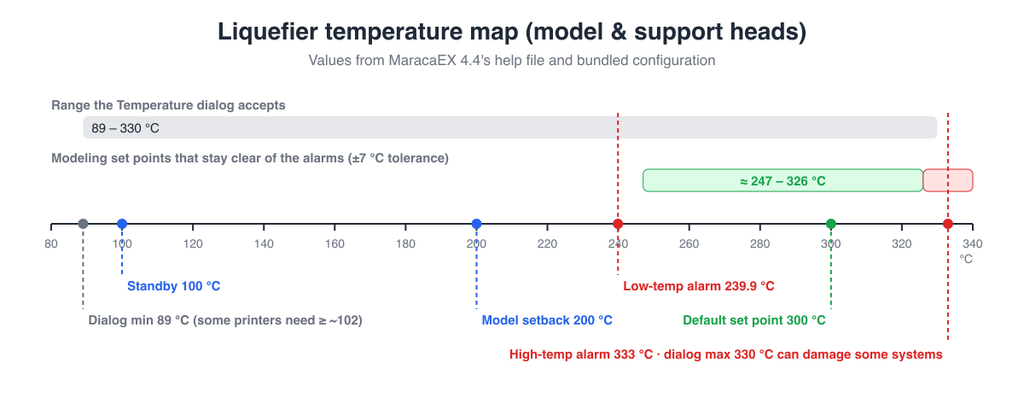
| Head (model) | 89 °C | 330 °C |
| Support | 89 °C | 330 °C |
| Chamber | 40 °C | 75 °C |
These limits come from the MaracaEX help file. The real safe range is narrower:
- Stratasys warns that 330 °C can damage some systems, and that head temperatures below about 102 °C stop some printers from working properly.
- The configuration bundled with MaracaEX sets a high-temperature alarm at 333.0 °C and a low-temperature alarm at 239.9 °C, with a ±7.0 °C tolerance band. A build set point near either alarm can fault a print, so keep build temperatures roughly 247–326 °C.
- The bundled defaults are 300 °C for the head and support and 78 °C for the chamber. Standby is 100 °C for the heads and 72 °C for the chamber. The default chamber value is above the 75 °C maximum the help file lists. Use the backup you saved in Step 4 as your baseline rather than either number.
Tips for tuning temperature
- Change in 5 °C steps and print the same test part after each change, so you know which change made the difference.
- Chamber temperature controls curl. A warmer envelope reduces warping on large, flat ABS parts. A cooler one helps fine features hold their shape. Keep it well below the material’s glass transition temperature.
- Raise model and support together if you’re chasing layer bonding on a soluble-support machine. The interface between them depends on both.
- Leave standby alone unless you have a reason. Standby only affects how hot the printer stays while it’s idle.
- Write down every value you change. MaracaEX keeps no history.
Troubleshooting
| Problem | Fix |
|---|---|
| “Unable to establish connection” | Check the IP address and network, wait for the printer to finish booting, then click Connect. |
| New values don’t take effect | You skipped the green check mark, or you didn’t power-cycle the printer. |
| Temperature never reaches the set point | The set point is beyond what the heater can reach (PWM stuck at 255). Lower it. |
| Temperature alarm during a build | The set point is too close to an alarm threshold. Move it back into the ~247–326 °C band. |
| Values look wrong after a change | Re-enter the values from your Step 4 backup, click the check mark and power-cycle. |
FAQs
Does MaracaEX 4.4 work with the Fortus 250mc?
Yes. Fortus 250mc is listed in MaracaEX 4.4’s Printer type list alongside the Fortus 200mc, Dimension and uPrint models.
What units does the Temperatures window use?
Degrees Celsius. The Display units setting in the main window only switches lengths between inches and millimeters.
Do I have to restart the printer after changing temperatures?
Yes. The new set points are sent when you click the check mark, but the controller only loads them after a power cycle.
Can I undo a temperature change?
Yes. Open Temperatures, enter the old values from your Step 4 backup, click the check mark and power-cycle.
Can I change temperatures in Insight or Catalyst?
No. Insight and Catalyst control the toolpaths and build settings, but the head, support and chamber set points live in the printer’s controller. MaracaEX is the tool that changes them.
Does MaracaEX work on the Fortus 360mc, 400mc or 900mc?
Not MaracaEX 4.4. Its Printer type list only covers the Fortus 200mc and 250mc, Dimension, Prodigy and uPrint models. For the larger Fortus machines, see our Fortus material license upgrades.
Do I need to change temperatures to run third-party filament?
Not always. Start at the stock set points and print a test part. Only adjust if you see weak layer bonding, stringing or warping, and then change one value at a time in 5 °C steps.
Quick checklist
- ☐ Printer idle, PC on the same network, MaracaEX connected
- ☐ Get Config backup saved
- ☐ One set point changed, then the green check mark clicked
- ☐ Printer power-cycled
- ☐ Actual temperature vs. set point checked in Status
- ☐ Test part printed and compared
- ☐ Change logged
Related Stratasys guides
- How to refill a Stratasys Fortus or Dimension cartridge
- How to refill a uPrint SE Plus cartridge
- How to fix the liquefier deadlock error on Fortus printers
- More Stratasys tips and tricks
Questions about tuning a specific material? Email [email protected] or check our FAQ.
Screenshots are of MaracaEX 4.4 (Build 4274) running on Windows 11 with no printer connected. The diagrams are original illustrations made for this post. MaracaEX, Insight, Catalyst, Dimension, Fortus, uPrint and Prodigy are trademarks of Stratasys Ltd. This post is an independent guide and isn’t affiliated with or endorsed by Stratasys. Using service software on your printer may affect its warranty or service agreement. You’re responsible for any changes you make to your own equipment.